ブログ
Best Caption Apps for Videos: 10 Tools Compared (2026)

投稿日:2025/2/5 作成者:Rane
Best SoftwareA sad and harsh truth you probably didn’t know is that 75% of mobile users watch videos on mute. That means they rely solely on the video captions to get the content's message, and if your video has none, you’re most likely losing a large audience.
This is why captions are great for your videos. To help you, we have created a list of the best caption videos you could choose from. For each tool, features, perks, pros, and cons are added so that you can make the right decision.
All you need to know
- Best for speed: SoundMadeSeen
- Best free option: CapCut
- Best for podcasters/audiograms: SoundMadeSeen
- Best for TikTok creators: CapCut
- Best for designers: Canva
- Best for professional video editors: Premiere Pro
- Best for accuracy: Rev.ai
Lets get into it in more detail:
What to Consider When Choosing a Caption App for Your Video
Before diving into the list, let’s discuss the criteria for choosing the best caption app or video subtitle generator for your video content.
1. Ease of Use
Whatever tool you use, its ease of use should be your top priority. The best apps simplify adding captions, even for beginners, with simple interfaces, layouts, and guides. Professionals should also ensure the tool has all the advanced features needed to handle complex tasks and make their work easier.
2. Accuracy
Your captions’ effectiveness depends on the accuracy of the tool you use. Although you could write the captions manually for better accuracy, using tools with a high accuracy percentage is the best, especially if you create videos on a large scale.
3. Customization Options
Personalization is another important criterion to consider. A good caption app offers extensive customization options that allow you to adjust font styles, sizes, colors, and placements. This flexibility ensures your captions align with your brand’s identity or suit the video's tone, whether professional, creative, or playful.
4. Pricing
Consider the value provided by the app relative to its cost. A free or low-cost option may be enough for occasional users, but professionals might need to invest in premium features to meet their needs. In some cases, professionals can get all the features they need at a lower rate than with super-expensive tools.
5. Compatibility
Seamless integration and compatibility with social media and other video platforms save time. Invest in apps that integrate smoothly with popular social media platforms like YouTube and TikTok. Also, the app should support a variety of video formats and resolutions to avoid issues during export.
The 7 Best Caption Apps for Videos
1. SoundMadeSeen: Best Caption App for Speed
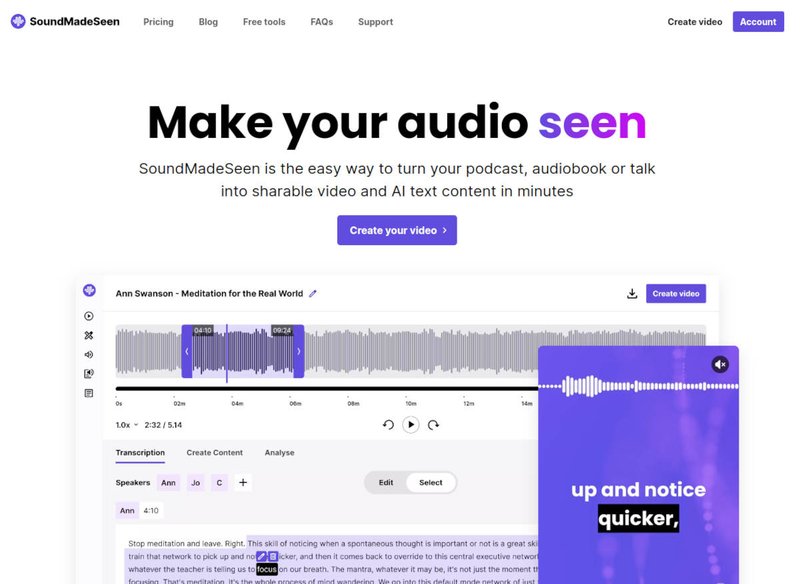
SoundMadeSeen is built around one principle: get from raw audio or video to a polished, captioned export as quickly as possible. Recently added onboarding flows guide you straight into the two most common workflows — generating podcast clips and subtitling videos — so you're producing finished output within minutes of signing up rather than hunting through menus. AI-powered transcription handles the heavy lifting accurately across 20+ languages, and the caption styling is fully customisable to match your brand.
Beyond captioning, SoundMadeSeen is an all-in-one platform with audiogram creation, automatic clip generation, text-to-speech, and voice cloning — making it particularly well-suited to podcasters and creators repurposing long-form audio into short-form video.
Features and Pros
- Guided onboarding flows for podcast clipping and video subtitling, optimised for speed.
- Accurate AI transcription with full caption customisation (font, colour, placement, animation).
- Multilingual support across 20+ languages.
- All-in-one toolkit: captions, audiograms, clip generation, text-to-speech, voice cloning.
- Browser-based — works on any device with no installation required.
- Watermark-free exports on paid plans.
Cons
- No permanent free tier; access requires a paid subscription or trial.
- Optimised for short and medium-form content; less suited to feature-length video editing.
- Output formats focus on MP4 and MOV — fine for 95%+ of social and web use cases, but limiting for niche workflows.
Pricing: SoundMadeSeen offers a free trial to test the platform. Paid plans start at $7.95 per month, with higher tiers for creators producing more content.
2. Capcut
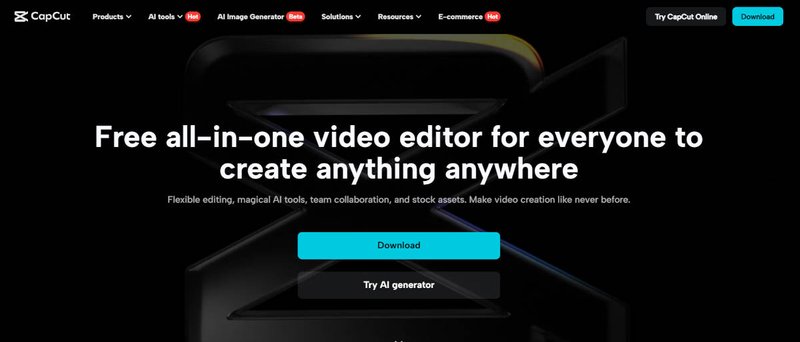
You might wonder why Capcut is so excellent, specifically for TikTok videos. Capcut was created by TikTok’s parent company, ByteDance, hence the seamless integration and optimization between both apps and its work as a great TikTok caption generator. Capcut offers a suite of video editing tools to professionals and beginners and has a rich interface containing basic and advanced editing features.
Features and Pros
- Automatic caption generation.
- Wide range of creative tools for professional-quality edits
- Free to use
- Accessible on mobile and desktop devices.
Cons
- Potential slow operation and cessation while editing.
- Learning the advanced features might take a steep curve.
- Limited advanced features compared to desktop editing software.
- The mobile version doesn’t support landscape mode and only has a 15-minute video cap.
Pricing: The pricing structure for Capcut starts at $9.99 monthly.
3. Veed.io
Veed.io is a browser-based video editor that's become a go-to for creators who want a simple, all-in-one workspace without installing software. Its auto-transcription handles caption generation in over 100 languages, and the platform layers on the usual extras — text overlays, filters, background removal, and basic editing. It's a solid choice for creators who want captions plus light editing in one place.
Features and Pros
- Automatic caption generation with support for 100+ languages.
- Browser-based, no installation required.
- Clean, beginner-friendly interface.
- Free tier available for testing the platform.
- Translation and subtitle export in multiple formats.
Cons
- Free version applies a Veed.io watermark to exported videos.
- Premium plans are pricier than several alternatives offering similar features.
- Users have occasionally reported upload reliability issues with longer files.
- Caption styling options are less granular than dedicated caption tools.
Pricing: Veed.io has a free tier with watermarked exports. The Lite plan starts at $9 per month, and the Pro plan at $24 per month for full access to premium features.
4. Kapwing
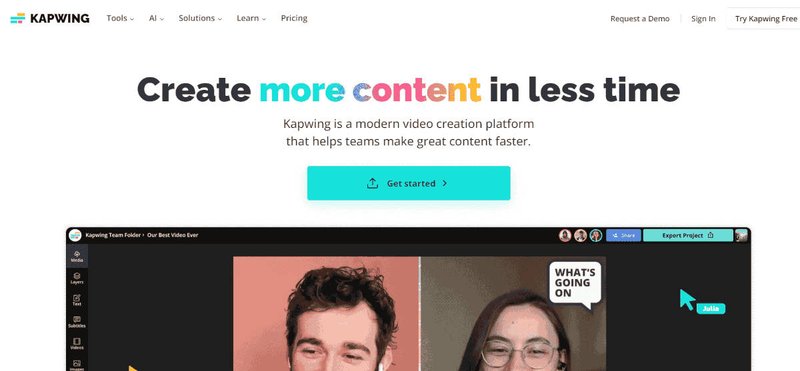
Content creators love Kapwing because it generates captions and subtitles with minimal effort. In addition to captioning, Kapwing has features such as video trimming, resizing, and text overlays.
Features and Pros
- Easy to use and understand.
- Compatibility across devices.
- User-friendly interface.
- AI-powered automation.
Cons
- The free version has a watermark, which is bad for your videos.
- Advanced tools are locked behind a subscription.
- Limited control over subtitling effect.
- It is expensive compared to other competitors.
Pricing: Kapwing’s pro version starts at $16 per month.
5. Canva
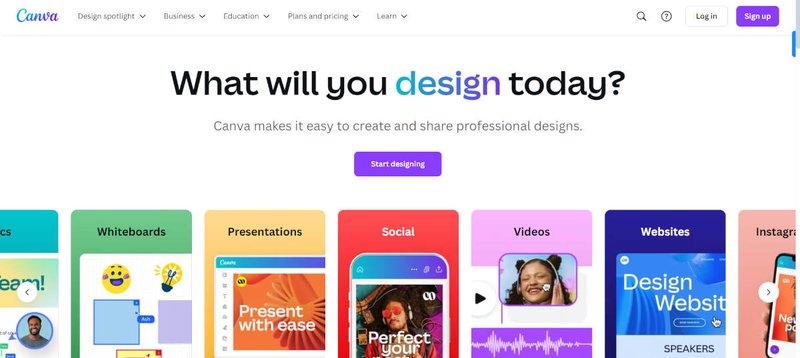
Although Canva is widely known as a design tool, its makers have also worked on it to accommodate videographers and content creators. Its templates have always been a lifesaver for people with little to no design knowledge, and they can be used in different design cases. Canva’s online video editor is another great tool for adding video captions. Its simple yet effective interface makes it unique and easy to understand.
Features and Pros
- Available as a web-based platform and a mobile app.
- Simple design and interface that is easy to understand.
- Collaboration tools for team projects.
- Easy customization to align with personal or brand aesthetics.
Cons
- The free version lacks access to premium templates and design elements, which are always better.
- Canva may lack some advanced video editing features.
Pricing: Canva has a free version with limited features you can start with, but its premium version starts at $12 per month.
6. Adobe Premiere Pro
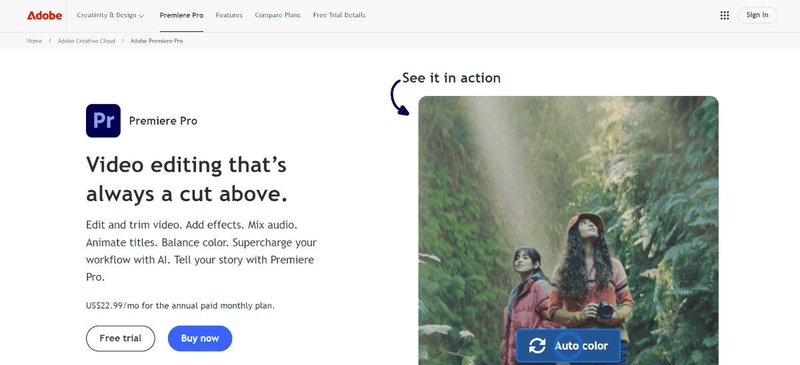
Adobe Premiere Pro is renowned for its robust features and various tools for creating high-quality videos. It is ideal for professional filmmakers, video editors, and content creators and can also be used to create social media content.
Features and Pros
- Advanced video editing tools with multi-track support.
- Regular updates and new features via Adobe’s Creative Cloud.
- A vast library of transitions, effects, and audio tools.
Cons
- Adobe Premiere Pro has a steep learning curve for beginners.
- It requires a high system requirement to function smoothly, making it compatible with only PCs with high RAM size and GPU processing power.
- Complexity for basic editing.
- Adobe Premiere Pro is expensive compared to other video captioning tools.
Pricing: You can only access Adobe Premiere Pro through a subscription plan. The subscription plan starts at $20.99 monthly (for the standalone program—without access to Adobe Creative Cloud).
7. Zubtitle
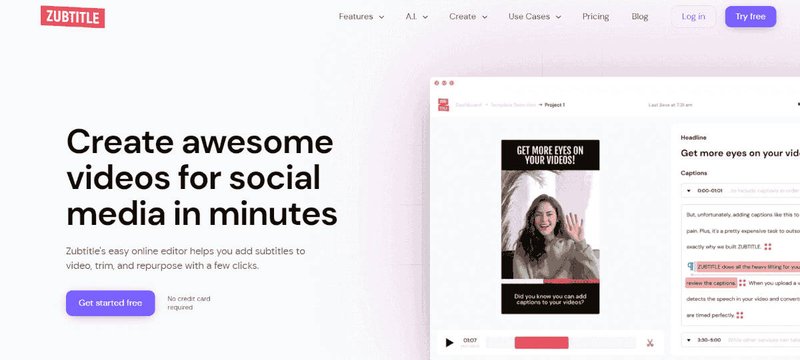
Zubtitle is another tool that automates the video captioning and transcription process. It allows users to add perfectly synced captions to their videos in just a few clicks, just like SoundMadeSeen. Zubtitle also allows you to add a video headline with full control over the visual style.
Features and Pros
- Customizable fonts, colors, and styles for branding.
- Automated transcription.
- Beginner-friendly interface.
Cons
- Zubtitle is more expensive than other video captioning tools.
- It only supports SRT files.
- Lacks some advanced features.
- Limited video length (30 minutes) despite the price.
Pricing: Zubtitle’s premium package starts at $19 monthly and continues to increase based on your preferred preference.
8. Submagic
Submagic has carved out a strong niche among short-form creators making content for TikTok, Reels, and Shorts. It generates animated, styled captions in the kind of bold, attention-grabbing format that performs well on social feeds, and adds B-roll suggestions, emoji overlays, and zoom effects automatically. If your goal is captions that look like the ones top creators use rather than plain subtitles, Submagic is built specifically for that aesthetic.
Features and Pros
- Animated, styled captions optimised for short-form video.
- Automatic B-roll, emoji, and zoom effect suggestions.
- 50+ caption templates inspired by popular creator styles.
- Multilingual support across 40+ languages.
- Fast turnaround on short clips.
Cons
- Designed primarily for short-form; less suitable for long videos or podcasts.
- Customisation is template-driven, with less granular control than full editors.
- Pricing scales quickly with video volume.
- No free tier — only a limited free trial.
Pricing: Submagic doesn't offer a permanent free plan. Paid plans start at $16 per month for the Starter tier, with higher tiers for creators producing more videos.
9. Opus Clip
Opus Clip takes a different angle to most tools on this list. Instead of just adding captions, it uses AI to identify the most engaging moments in long-form video and turn them into captioned short-form clips automatically. For podcasters and long-form creators looking to repurpose existing content into TikToks, Reels, and Shorts, Opus Clip handles the clipping, captioning, and reframing in one workflow.
Features and Pros
- AI-driven moment detection for automatic clip generation from long videos.
- Auto-captions with customisable styles applied to generated clips.
- Automatic vertical reframing for short-form platforms.
- Virality scoring to help prioritise which clips to publish.
- Direct integration with YouTube and other long-form sources.
Cons
- Less useful if you only need captions for a single video rather than clip generation.
- AI moment selection isn't always accurate and often needs manual review.
- Caption styling is more limited than dedicated caption tools.
- Free tier has tight processing limits.
Pricing: Opus Clip offers a free plan with limited monthly processing minutes. Paid plans start at $19 per month for the Starter tier.
10. Rev
Rev is the accuracy leader on this list, offering both AI-generated and human-transcribed captions. Its human transcription service guarantees 99%+ accuracy, which makes it the standard choice for legal, medical, academic, and broadcast content where mistakes aren't acceptable. The AI option is faster and cheaper, while the human option is the right call when accuracy genuinely matters.
Features and Pros
- 99%+ accuracy on human-transcribed captions.
- AI captioning available at a lower price point for faster turnaround.
- Trusted by enterprise, academic, and media organisations.
- Multiple export formats including SRT, VTT, and burned-in captions.
- Foreign language subtitles and translation services available.
Cons
- Human transcription is significantly more expensive than AI-only competitors.
- AI accuracy is good but not class-leading compared to specialised AI tools.
- The interface is more utilitarian than creator-focused alternatives.
- Less suited to creators who need styled or animated captions for social.
Pricing: Rev's AI-generated captions start at $0.25 per minute. Human-transcribed captions are priced at $1.99 per minute. Subscription plans are available for high-volume users.
FAQs on the Best apps to Caption Videos
How do I add captions to my videos?
Start by uploading your video to a captioning tool like SoundMadeSeen. Adjust the settings: language, number of speakers, and any other preferences, then let the AI analyse and transcribe the audio. Once the captions are generated, head to the editor to choose your video resolution, refine the wording, and style the captions to match your brand. When you're happy with the result, export and download.
Can I upload subtitles to a video automatically?
Yes. Most modern caption apps, including SoundMadeSeen, generate subtitles automatically using AI transcription. Upload your video, let the tool process the audio, and you'll get a timed subtitle track within minutes. You can then edit the text for accuracy and adjust styling before exporting.
What's the most accurate caption app?
For pure accuracy, Rev's human-transcribed service leads the pack at 99%+ accuracy, though it comes at a higher price. Among AI-only tools, accuracy depends heavily on audio quality, accent, and background noise. SoundMadeSeen, Descript, and Veed all perform strongly on clear audio. For creators, AI accuracy is usually good enough; for legal, medical, or broadcast content, human transcription is worth the investment.
Are there free caption apps without watermarks?
Yes, but the options are narrower than free apps in general. CapCut exports without a watermark on its free plan but most other tools (Veed, Kapwing, Zubtitle) apply a watermark on free exports and require a paid plan to remove it.
What's the best caption app for Instagram Reels and TikTok?
For TikTok specifically, CapCut is hard to beat. It's built by TikTok's parent company and integrates directly with the platform. For Reels, Submagic and SoundMadeSeen are both strong choices, with Submagic leaning into the animated, styled caption aesthetic popular on short-form, and SoundMadeSeen offering more flexibility across formats. The right pick depends on whether you want captions that match a specific creator style or captions you can fully customise to your brand.
Can I add captions to videos on my phone?
Yes. CapCut, Canva both work on mobile, either through dedicated apps or browser-based interfaces. For quick captioning on the go, mobile workflows are perfectly capable, though a desktop browser typically gives you more screen space and finer control over caption styling.
How long does it take to add captions to a video?
With AI-powered tools, transcription is usually faster than real-time - a 10-minute video typically processes in 1–3 minutes. Editing for accuracy and styling adds another 5–15 minutes depending on how much manual refinement you do. Human transcription services like Rev take longer, typically a few hours to a day, but deliver higher accuracy.
Do caption apps support languages other than English?
Most modern tools support multiple languages. SoundMadeSeen handles 20+ languages, Veed supports over 100, and Submagic covers 40+. If you're creating content for a non-English audience or need translation alongside transcription, check each tool's language list before committing - accuracy varies significantly by language, and some tools handle major European and Asian languages much better than others.